Now that your upgrade is complete, here’s your step-by-step guide to getting set up. Work through these in order to ensure your Giving form is accurate, visible to donors, and properly tied into your records.
💡 Need help? Contact the Managed Giving team at managed.giving@ministrybrands.com. They remain your dedicated Faith Direct Client Relations Managers. Even if an article lists another contact, always reach out to Managed Giving first.
IMPORTANT NOTE: Depending on your upgrade date, there may be up to two final disbursement/contribution exports to retrieve from Faith Direct. You will receive the normal emails when they are ready. Once you are past the date range where you might have any last gifts, you will be removed from those email notifications.
Important Update: Donor Refunds After Your Giving Upgrade
Due to unforeseen circumstances, Faith Direct will no longer be able to process refunds for any transactions made before your upgrade to ParishSOFT Giving is complete.
Originally, we expected to support refunding historical Faith Direct transactions. However, because Faith Direct and ParishSOFT Giving operate under different merchant accounts, we are unable to link the two systems, which means we can no longer process refunds from Faith Direct.
What this means for you:
- Donations or event payments made through Faith Direct must be refunded directly by the parish or organization.
- Donations processed through ParishSOFT Giving can be refunded within the system.
We sincerely apologize for any inconvenience and appreciate your understanding as we work to provide a seamless transition.
To learn how to issue a refund in ParishSOFT Giving, please check out this article. Reach out to your Client Relations Manager with any questions.
Access Your Giving Form Link & Confirm Options
- Click here to learn how to get your giving link and QR code!
- Access your new Giving form and confirm that the funds are displayed. For help with managing giving form funds, read this article.
- All appeals, now called funds, now display with a donor-selected frequency. The “One Time” label means the gift can still be set as recurring. You may hide these funds or leave them visible.
- Upon migration, all funds have been set to Tax Deductible. Watch this video to learn how to manage funds and make any needed changes.
- Update your giving link on your church website.
- Use the updated button images on your site.
- Update your bulletin with the new link/QR code.
- Double-check your Giving Portal link:
Go to Settings (gear icon, top right) → Giving Portal Tile → scroll to the bottom for your new link.
Turn On the “Show My Giving” Button in Email Templates
This ensures donors can easily log in to manage their accounts.
- Go to Settings → Email Templates tile
- From the dropdown, select Recurring Gift
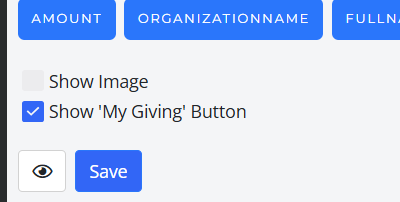
- Check Show My Giving Button
- Save
Manage Your Data
- Set up your Contribution Export in the Data Export tile. Here's a video to help you through that process.
- If you previously had exports enabled for Disbursements, you’ll need to turn them on again in ParishSOFT Giving. Settings will carry over, but you must run one report first to save them. Click here for detailed instructions
- Read through the article "Breaking Down the Disbursement Report."
Manage Your Donors
- Review the Donor Merge article
- Watch the Donor Merge video
Get to Know the New Platform
- Watch the New Platform Overview video
- Learn about Deposits & Transaction Fees
Train Your Team
We have recorded a three-part webinar to equip you with the necessary knowledge and tools to navigate the ParishSOFT Giving program efficiently
Already watched Parts 1–3? Try the Interactive Platform Overview
Campaigns & Pledges
- All appeals have been converted to funds with no end dates.
- Past campaign pledges are calculated on donor profiles.
- Still want donors to pledge? Check out this article for instructions on setting up a new pledge campaign in ParishSOFT Giving.
- Note: Original Faith Direct pledges are not merged with new ParishSOFT pledges.
Family Suite Integration (Optional)
If you use ParishSOFT Family Suite, you can integrate with Giving so that online donations automatically appear in Family Suite. We have several articles that will help you with this process.
We have also recorded an in-depth video that walks through the process of integrating ParishSOFT Giving with ParishSOFT Family Suite. It covers setting up the integration, mapping funds, and matching donors.
If you need further assistance with setting up the integration, please call ParishSoft Support at 866-930-4774.
Donor Experience
- Donors log in with their existing Faith Direct email/password.
- If they fail to log in, they can reset their password.
- Still stuck? Have them call Donor Support at 866-930-4774 (option 6)
- Once logged in, donors see:
- Blue circle (initials, top right) → account & gift management
- Scheduled → edit existing gifts
- Give Now → add new gifts
- Payment Methods → manage stored methods
- Weekly gifts are now processed as true weekly donations (one per Sunday, not all at once). Donors may adjust their gifts online.
- To cancel a gift, donors can click the trash can icon next to each recurring gift. This must be done for every recurring gift they wish to end.
- Admins can also end a recurring gift by opening the donor record, selecting the Recurring Gifts tab, and clicking the three dots on the right to choose End Recurring Gift.
Additional Resources
(Includes reporting differences between Faith Direct and ParishSOFT Giving.)
- ParishSOFTbyMB.png80 KB
Updated